Posts

iOS 11 - Autofill Passwords
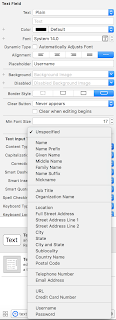
Image
In this tutorial, we will discuss about AutoFill password feature available in iOS. Remembering passwords that we create in multiple applications is not only hard but also has risk to forget sooner or later. Then we have to use Forgot Password feature to set a reset your password.  Auto-filling passwords is available in Web for a long time. Though iOS Safari provided this feature of auto populating passwords for mobile websites, the native applications are left behind and users have to take responsibility for their passwords. Starting from iOS 11,  Apple provide an exciting feature where native apps can use this auto-filling passwords in applications. Which means, user from iOS 11 don't have to necessarily remember their passwords using in their apps. What we should do? We would be using UITextInputTraits protocol, and set the ‘textContentType' property. UITextInputTraits protocol defines features associated with the keyboard input to a text object....

Singleton static object

To create static shared object, that can be used across all view controllers .h + (id) sharedCustomAppController; .m static CustomApplicationController *sharedCustomAppController = nil; + (id) sharedCustomAppController {    @synchronized (self) {        if (sharedCustomAppController == nil) {            sharedCustomAppController = [[CustomApplicationController alloc] init];        }    }    return sharedCustomAppController ; }

NSError - Custom localised messages

NSError can be customised to deliver localized messages to the user. This is meant to show meaningful messages based on situations where and when error happens. 1. Create a strings file. As iOS supports localization, we need to add "strings" file to our project and add the error messages. "99" = "Exception occurred" "100" = "Login Successful."; "101" = "Logout failed"; "102" = "Unable to connect server"; "103" = "Invalid input data"; 2. Add two macro that would help to fetch the localized messages. #define ERROR_KEY(code)                    [NSString stringWithFormat:@"%d", code] #define ERROR_LOCALIZED_DESCRIPTION(code)  NSLocalizedStringFromTable(ERROR_KEY(code), @"Error", nil) // "Error" is the strings file name.

Debug logs

To enable debug logs in iOS application, add the following code in project PCH file. #if defined (DEBUGLOG) #define DebugLog( s, ... ) NSLog( @"%@", [NSString stringWithFormat:(s), ##__VA_ARGS__] ) #else #define DebugLog( s, ... ) #endif

Convert HEX code to RGB

To use hex code in UIColor, use the below macro. #define UIColorFromRGB(rgbValue) [UIColor \        colorWithRed:((float)((rgbValue & 0xFF0000) >> 16))/255.0 \        green:((float)((rgbValue & 0xFF00) >> 8))/255.0 \        blue:((float)(rgbValue & 0xFF))/255.0 alpha:1.0] //Then use any Hex value self.view.backgroundColor = UIColorFromRGB(0xD2691E); 

Custom Message extension using Messages SDK - iMessage App store

Image
In our previous article , we discussed about creating custom sticker extension for our iMessage App store. We used images and using Messages SDK, we are able to create the custom extension for sticker. We also created a basic sticker extension in this article . Apple Messages SDK provides lot more features than just creating stickers. In today's article, we will create a custom message extension using Messages SDK and run them on iMessage app store. Before diving in to the project, lets look at the classes provided by Apple for implementation. MSMessagesAppViewController The MSMessagesAppViewController class acts as the principal view controller for Messages extensions. Use this class to manage your extension. MSMessageTemplateLayout The MSMessageTemplateLayout describes how an MSMessage object is presented in the transcript. The message template includes the Message extension’s icon, an image, video, or audio file, and a number of text elements (title, subtitle, captio...

Custom sticker extension using Messages SDK - iMessage App store

Image
In our previous article , we discussed about creating basic sticker extension for our iMessage App store. This step requires  to create imgages but no coding effort. Today, in this article we will discuss about creating a custom sticker extension and create stickers from the app. Before diving in to the project, let's have a quick glance about the new classes provided by Apple for implementation. MSMessagesAppViewController The MSMessagesAppViewController class acts as the principal view controller for Messages extensions. Use this class to manage your extension. MSStickerBrowserViewController Use the MSStickerBrowserViewController to present the standard sticker browser. This browser provides drag-and-drop functionality. The user can press and hold a sticker to peel it from the browser, then drag the sticker to any balloon in the transcript. The user can also tap stickers to add them to the Messages app’s input field. MSSticker A sticker for use in the Messages a...

Basic Sticker Extension using Messages SDK - iMessage App Extension

Image
Message App Extensions When bots and stickers are already available in most popular messaging apps, Apple has brought the native iMessage applications to the competition. Now developers can create app extensions, which can be part of existing apps or an individual extension which would be available in iMessage App Store. This iMessage App store is completely different from regular App Store. Using app extensions, Apple will allow its developers to create basic sticker packs, custom sticker applications and custom applications. Before we jump into the whole coding thing, let's have a quick look at app extensions. App Extension An app extension allows the developers to extend the custom functionality and contents beyond the application while the users are interacting with other apps or system. For example, a Today widget is a great extension to view the information even though the users are using any app. An app extension is a separate binary that runs inde...

Android Studio Shortcuts (MAC)

A ndroid Studio Shortcuts (MAC) KEYS RESULTS CTRL + R Build and Run CMD+O Find Class CMD+B Go to Class Definition CMD + SHIFT + O Find file CTRL + ALT + L Code reformatting. It has other interesting options as well. For example, optimize imports. Double Shift Search everywhere. So you don’t have to open folders to find the files you’re looking for CMD + P Show parameters for selected method OPTION + CMD + O Search by symbol name CMD + Backspace Delete line CTRL+D Debug CTRL + ALT + M Extract Method CTRL + ALT + F Extract Field CTRL + N Search code file in project CTRL + E Show recent files CTRL + Shift + E Search from all files (including xml) ALT +Enter Hint for any issue, error, warning etc. CTRL + Shift + Numpad + Expand All Functions CTRL + Shift + Numpad - Minimize All Functions CTRL + Shift + F12 Close All Opened Sidebar Menus Cmd + Shift + T Generate a test class for t...